
Have you ever lost your phone and realized all your photos, contacts, and important files were gone forever? It’s one of the worst feelings in the world.
The good news is — backing up your phone data is easier than you think. In this guide, you will learn exactly how to backup your Android or iPhone data safely, for free, using simple tools.
Whether you’re a tech beginner or just want to double-check your setup, this guide covers everything you need.
What is Phone Data Backup?
A phone backup is a copy of all your important data — saved in a safe place like the cloud or your computer.
This includes your photos, videos, contacts, messages, app data, and settings. If your phone is lost, stolen, or damaged, you can restore everything from that backup onto a new device.
Think of it like a safety net for your digital life.
Why is Backing Up Your Phone So Important?
Most people don’t think about backup — until it’s too late. Here’s why you should start today:
- Accidental loss — Phones get lost, stolen, or dropped every day
- Hardware failure — Your phone can stop working without any warning
- Software issues — A bad update can wipe your data
- Theft protection — Even if your phone is stolen, your data stays safe
- Easy device switching — Moving to a new phone becomes stress-free
A regular backup gives you complete peace of mind.
Best Methods to Backup Your Phone Data
1. Google Backup (Android Users)
Google offers a free and automatic backup system for Android phones.
What it backs up:
- Contacts
- Call history
- SMS messages
- App data
- Device settings
- Photos and videos (via Google Photos)
How to enable it:
- Go to Settings on your Android phone
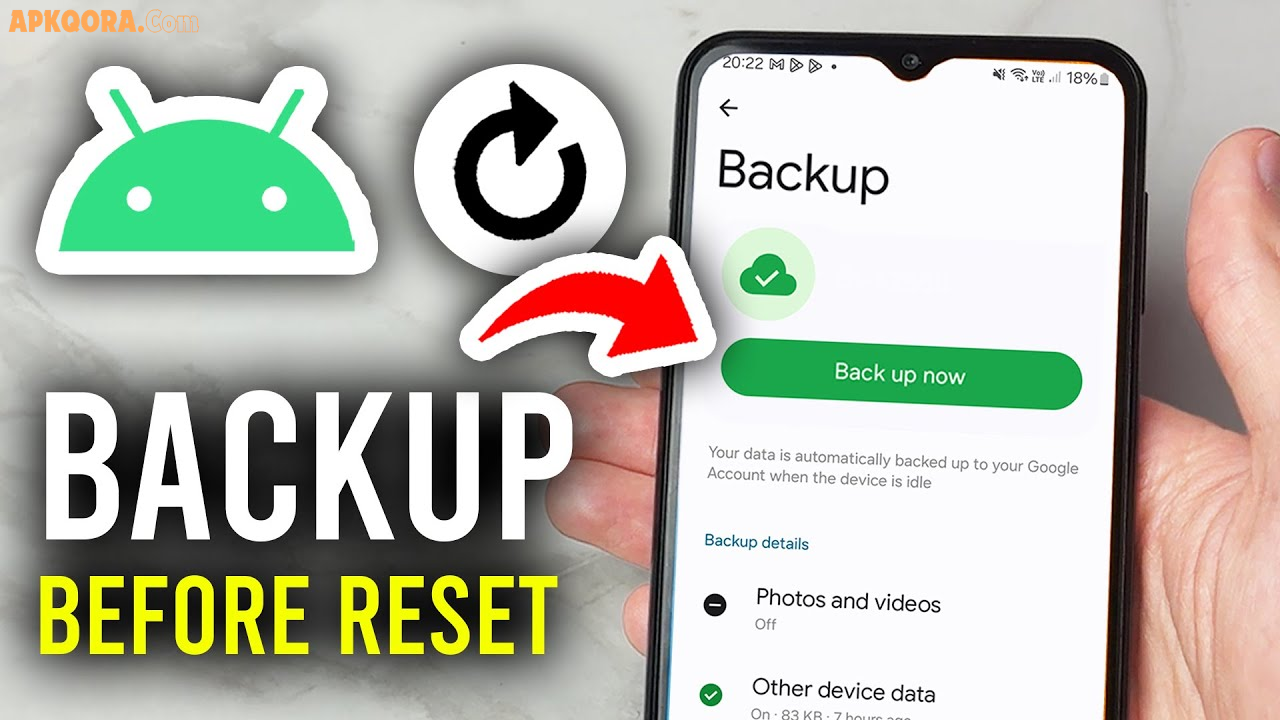
- Tap Google → then Backup
- Turn on Back up to Google Drive
- Tap Back up now to start immediately
Your data will automatically backup every day when your phone is charging and connected to Wi-Fi.
2. iCloud Backup (iPhone Users)
Apple’s iCloud is the easiest way to backup your iPhone data automatically.
What it backs up:
- Photos and videos
- Messages and iMessages
- App data and settings
- Health data
- Device configuration
How to enable it:
- Open Settings on your iPhone
- Tap your Name at the top
- Go to iCloud → iCloud Backup
- Turn it On
- Tap Back Up Now
Apple gives you 5GB of free iCloud storage. If you have more data, affordable storage plans are available.
3. Google Photos (Best for Photos & Videos)
Google Photos is one of the best tools for backing up your camera roll — works on both Android and iPhone.
- Free storage available (compressed quality)
- Accessible from any device
- Easy to search and organize photos
- Automatically syncs when connected to Wi-Fi
Just install Google Photos, sign in with your Google account, and turn on Backup & Sync. That’s it.
4. Computer Backup (Offline Method)
If you prefer keeping your data offline, connecting your phone to a computer is a reliable option.
For Android:
- Connect via USB cable
- Open your phone’s storage in File Explorer (Windows) or Finder (Mac)
- Copy and paste your folders (Photos, Documents, Music) to your computer
For iPhone:
- Use iTunes (Windows) or Finder (Mac)
- Connect your iPhone via USB
- Click on your device and select Back Up Now
This method is great because your data stays on your computer — no internet needed.
5. Third-Party Backup Apps
Several trusted apps offer extra backup features for both Android and iPhone:
- Google One — Expanded cloud storage and backup management
- OneDrive (Microsoft) — Great for photos and documents, syncs with Windows
- Dropbox — Good for specific files and folders
These tools are safe, legal, and widely used around the world. Learn more about each tool on their official websites.
Comparison: Cloud Backup vs Local Backup
| Feature | Cloud Backup | Local (Computer) Backup |
|---|---|---|
| Access from anywhere | ✅ Yes | ❌ No |
| Needs internet | ✅ Yes | ❌ No |
| Free storage | Limited | Unlimited (your hard drive) |
| Auto backup | ✅ Yes | ❌ Manual |
| Best for | Everyday use | Full device backup |
Tip: Using both methods together gives you the strongest protection.
Pros and Cons of Phone Backup
✅ Pros
- Never lose important data again
- Easy to switch to a new phone
- Protects against theft and damage
- Most methods are free or very affordable
- Takes only a few minutes to set up
❌ Cons
- Cloud storage has limits on free plans
- Backup over mobile data can use your quota
- Some sensitive data needs extra privacy settings
- Local backups require physical storage space
Practical Tips for a Safe Phone Backup
Follow these best practices to keep your backup reliable and secure:
- Backup regularly — Set automatic backup so you never forget
- Use Wi-Fi for cloud backup — Avoids using your mobile data
- Check your backup status — Confirm it’s actually working every few weeks
- Use strong passwords — Secure your Google or Apple account with a strong password and two-factor authentication
- Keep multiple copies — Store one backup in the cloud and one on your computer
- Test your backup — Try restoring a file once to make sure everything works correctly
- Keep your storage clean — Delete old backups to free up space
FAQs — Phone Data Backup
Q1: How often should I backup my phone? Ideally, you should back up your phone at least once a week. If you take a lot of photos or make important changes daily, consider setting up automatic daily backups.
Q2: Is Google backup safe and private? Yes, Google backup is encrypted and secure. Your data is protected by your Google account. Make sure to use a strong password and enable two-factor authentication for extra security.
Q3: Can I backup my phone without internet? Yes. You can connect your phone to a computer via USB cable and copy your files manually. This is a completely offline method and works for both Android and iPhone.
Q4: What happens if I don’t backup my phone and it breaks? If you haven’t backed up your data and your phone stops working, there is a high chance your data will be permanently lost. Data recovery services exist but are expensive and not always successful.
Q5: How much storage do I need for a phone backup? It depends on how much data you have. The average person needs 5–15GB for a full backup. Google and Apple both offer free storage, with paid plans available if you need more space.
Conclusion
Backing up your phone is one of the smartest and simplest things you can do to protect your digital life.
Whether you choose Google Backup, iCloud, Google Photos, or a computer backup — the important thing is to start today. It only takes a few minutes to set up, but it can save you from a huge loss in the future.
Set up automatic backup right now, and explore the tools mentioned in this guide to find what works best for you.