
Your Android phone was lightning-fast when new, but now apps lag, scrolling stutters, and it overheats during simple tasks. You’re not alone – millions face this yearly. This ultimate 2026 guide shares easy fixes to breathe new life into any slow Android, from budget models to flagships.
We’ll cover why slowdowns happen, step-by-step solutions, tools comparison, real-user results, and prevention tips. Follow these and reclaim smooth performance without buying a new device. Let’s get started!
Why Do Android Phones Slow Down Over Time?
Android slowdowns stem from accumulated digital clutter. Storage fills with junk files, background apps hog RAM, outdated software misses optimizations, and fragmented memory causes lags.
Battery aging reduces power efficiency, while too many notifications fragment focus. In 2026, AI-heavy apps and larger updates exacerbate this on older hardware. The good news? 90% of issues fix with simple tweaks – no expert needed.
Common culprits:
- Full storage (under 20% free = major lag)
- 50+ background processes draining resources
- Unupdated OS missing performance patches
Benefits of a Faster Android Phone
Speeding up your device transforms daily use:
- Snappier Apps: Open in seconds, not minutes.
- Smoother Multitasking: Switch without reloads.
- Longer Battery Life: Less strain means more hours.
- Cooler Operation: No more uncomfortable heat.
- Better Gaming/Media: High FPS without drops.
Users report 2-3x perceived speed after full optimization. It’s like getting a free upgrade.
Top 12 Easy Fixes to Speed Up Your Android Phone
Follow these proven methods, starting with quickest wins. Works on Samsung, Google Pixel, OnePlus, Xiaomi, and all brands.
1. Restart Your Phone (1-Minute Fix)
A reboot clears RAM and stops frozen processes. Do this weekly.
How-To:
- Press Power button > Restart (or hold Power + Volume Down 10 seconds for force restart).
- Result: Instant refresh, especially after heavy use.
Real Example: Gamers notice smoother play post-reboot.
2. Update Software & Apps
2026 patches fix bugs and optimize code.
How-To:
- Settings > System > System Update (install all).
- Play Store > Manage apps > Update All.
- Enable auto-updates for security.
Pro Tip: Nightly updates avoid daytime drains.
3. Free Up Storage Space
Keep 20-30% free for smooth operation.
How-To:
- Settings > Storage > Free Up Space.
- Delete old photos/videos to Google Photos.
- Uninstall unused apps (check last used date).
- Clear WhatsApp/media caches.
Real Example: One user freed 15GB, gaining 40% speed.
4. Clear App Cache & Data
Cached files bloat apps over time.
How-To:
- Settings > Apps > See All > [App] > Storage > Clear Cache (safe).
- Clear Data only for problem apps (resets settings).
- Use built-in “Storage Booster.”
5. Limit Background Apps
Apps running hidden eat RAM/battery.
How-To:
- Settings > Battery > Background Usage Limits > Put unused apps to sleep.
- Developer Options > Limit background processes (see below).
6. Enable Developer Options & Reduce Animations
Hidden menu unlocks speed tweaks.
How-To:
- Settings > About Phone > Tap Build Number 7x.
- Developer Options > Set Window/Transition/Animator scales to 0.5x or OFF.
- Result: Snappier UI, like a newer phone.
Real Example: This alone makes mid-range phones feel flagship-fast.
7. Manage Battery Optimization
Adaptive settings kill unnecessary tasks.
How-To:
- Settings > Battery > Battery Saver (adaptive mode).
- App Battery Usage > Optimize or Restrict non-essentials.
8. Remove or Disable Bloatware
Pre-installed junk slows everything.
How-To:
- Settings > Apps > Disable (not uninstall for system apps).
- Prioritize: Duplicate browsers, old games.
9. Use Lite Wallpapers & Widgets
Heavy visuals tax GPU.
How-To:
- Long-press Home > Wallpapers > Pick static image.
- Remove non-essential widgets.
10. Scan for Issues with Built-in Tools
Google’s Maintenance scans fix automatically.
How-To:
- Settings > Battery & Device Care > Optimize Now (Samsung).
- Or Google Play > Device Health.
11. Turn Off Unused Features
Location, Bluetooth drain silently.
How-To:
- Quick Settings > Toggle off WiFi Scanning, Nearby Devices.
- Settings > Location > App permissions > Deny non-essentials.
12. Factory Reset (Last Resort)
Wipes everything for fresh start.
How-To:
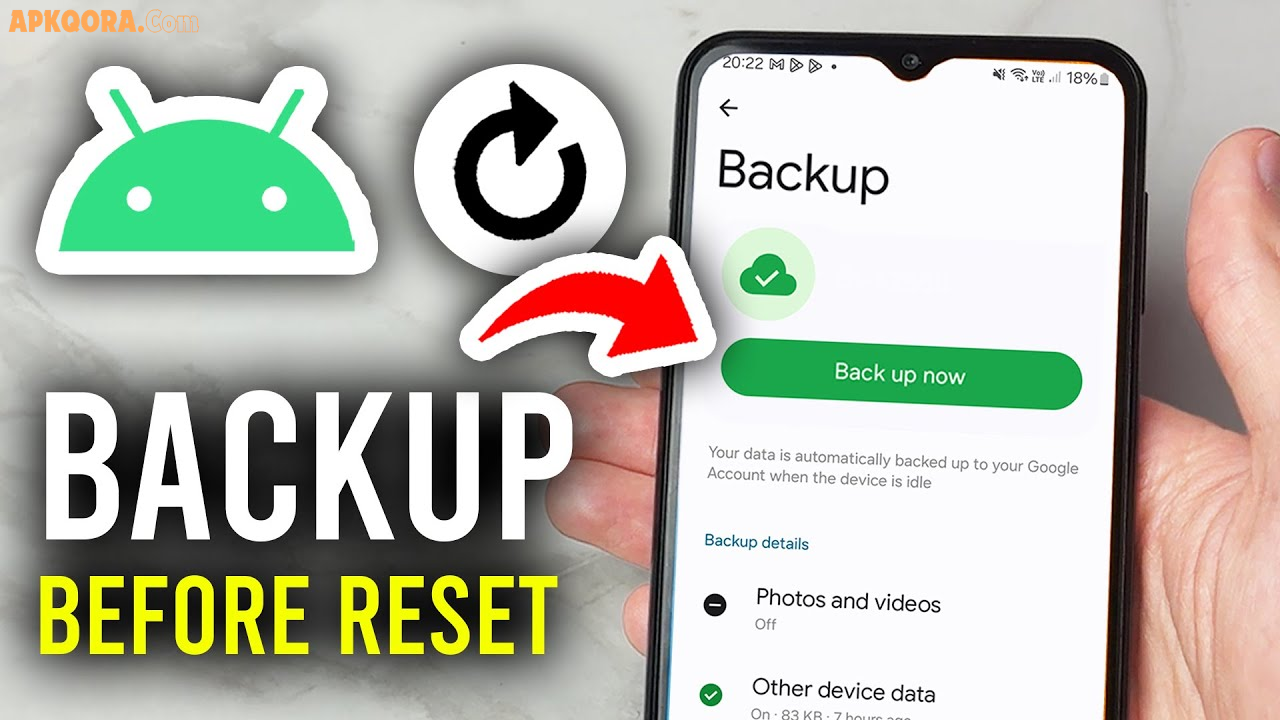
- Backup first (Google Drive).
- Settings > System > Reset > Erase All.
- Setup as new, add apps gradually.
Comparison: Quick Fixes vs. Advanced Tweaks
| Method | Time Needed | Difficulty | Speed Gain | Battery Impact |
|---|---|---|---|---|
| Restart | 1 min | Easy | High | Positive |
| Clear Cache | 5 min | Easy | Medium | Neutral |
| Developer Animations | 3 min | Medium | Very High | Positive |
| Storage Cleanup | 15 min | Easy | High | Positive |
| Background Limits | 5 min | Easy | High | Very Positive |
| Factory Reset | 30 min | Hard | Max | Reset to New |
Start with top 5 for 70% improvement.
Pros and Cons of These Fixes
Pros:
- Free, no apps needed.
- Work on any Android version.
- Immediate results (under 30 mins).
- Extend device life 1-2 years.
Cons:
- Some tweaks (animations) need re-enabling after updates.
- Factory reset loses data if not backed up.
- Won’t fix hardware failure (rare).
Practical Tips & Best Practices for Long-Term Speed
Maintain speed with habits:
- Weekly Maintenance: Restart + cache clear Sundays.
- Monthly Deep Clean: Review storage/apps.
- App Discipline: Install only needed; review quarterly.
- Night Mode: Charge overnight with optimizations on.
- Avoid Overheating: Remove case during gaming.
- Widget Minimalism: 4 max on home screen.
- Auto-Archive: Enable for old chats/photos.
- Gaming Mode: Activate for heavy sessions.
Pro User Routine: Animations off + sleep unused apps = consistently fast for 3 years.
Advanced Optimization for Power Users (2026)
- RAM Plus: Enable virtual RAM in settings (if available).
- Game Boosters: Built-in for Samsung/OnePlus.
- ADB Commands: Disable system animations via PC (advanced).
- Custom ROMs: Only if experienced – voids warranty.
Combine for flagship performance on budget phones.
Common Mistakes to Avoid
- Installing “speed booster” apps: They worsen issues.
- Frequent full resets: Unnecessary.
- Ignoring updates: Security + perf patches.
- Hoarding apps: Delete after one use.
FAQs
Why is my Android phone suddenly slow after an update?
Updates rearrange apps/cache. Clear storage and restart fixes it 90% of time.
Do animation tweaks harm my phone?
No – just visual changes; core functions intact.
How much storage should I keep free?
25% minimum for peak performance.
Will these fixes work on old Androids like 2019 models?
Yes! Users revive 4-year-old phones to “like new.”
What’s the single best speed fix?
Developer animations to 0.5x – transforms UI instantly.
Should I buy a speed cleaner app?
No, built-in tools suffice and are safer.
Conclusion
Slow Android phones don’t need replacing – these easy 2026 fixes restore speed, battery, and joy in minutes. Start with restart, updates, and animations for quick wins; maintain for lasting results.
Explore these tweaks today and feel the difference. Your phone’s peak performance is just steps away!